Why can't others hear my voice in a meeting or call?
If you are talking but others cannot hear you during a meeting or 1-on-1 call, the possible reasons are:
- Microphone muted in meeting or call. Please check whether the microphone is muted
 in the meeting. If muted, unmute it to talk.
 - The system microphone has been muted. If you are using a Windows computer. Please check if your microphone is muted from the system side.
- Test if audio device works.
- On Mac/Windows, please go to Settings - Meeting Preference - Audio. Click Test Mic, and try to speak something, and see if you can hear the recorded audio.
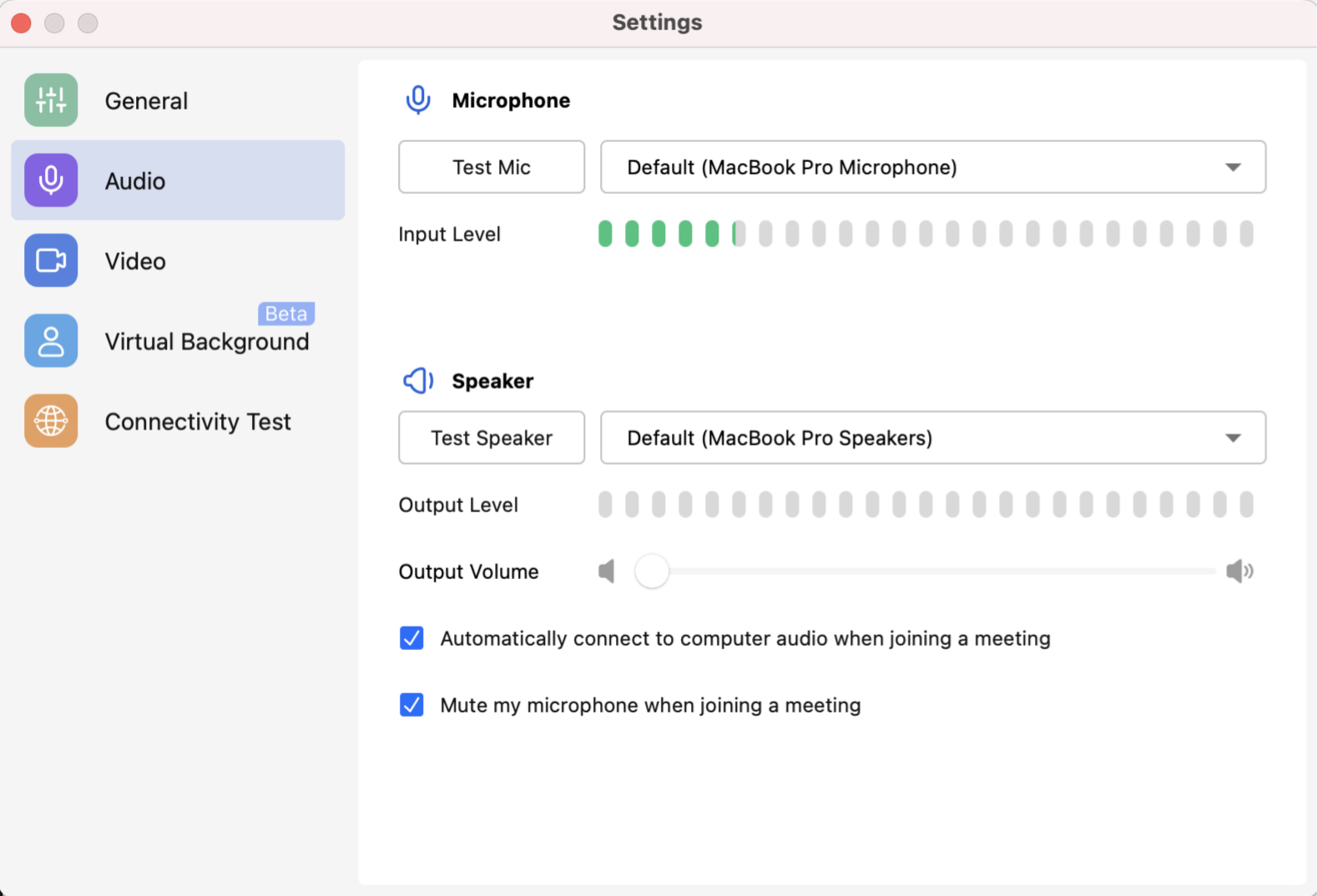
- On Mac/Windows, please go to Settings - Meeting Preference - Audio. Click Test Mic, and try to speak something, and see if you can hear the recorded audio.
- Assign the permission for Matrx to use the microphone device.
- select Start > Settings > Privacy > Microphone .
- In Allow access to the microphone on this device, select Change and make sure Microphone access for this device is turned on.
- Then, allow apps access to your microphone. In Microphone settings, go to Allow apps to access your microphone and make sure it's turned on.
- On Mac, go to System Preference - Security&Privacy - Microphone, and add Matrx.
- On Windows.
- Unstable network connection. Unstable network may cause sound transmission problems.
- On Mac/Windows, please go to Settings - Meeting Preference - Connectivity Test check if your network is stabled.
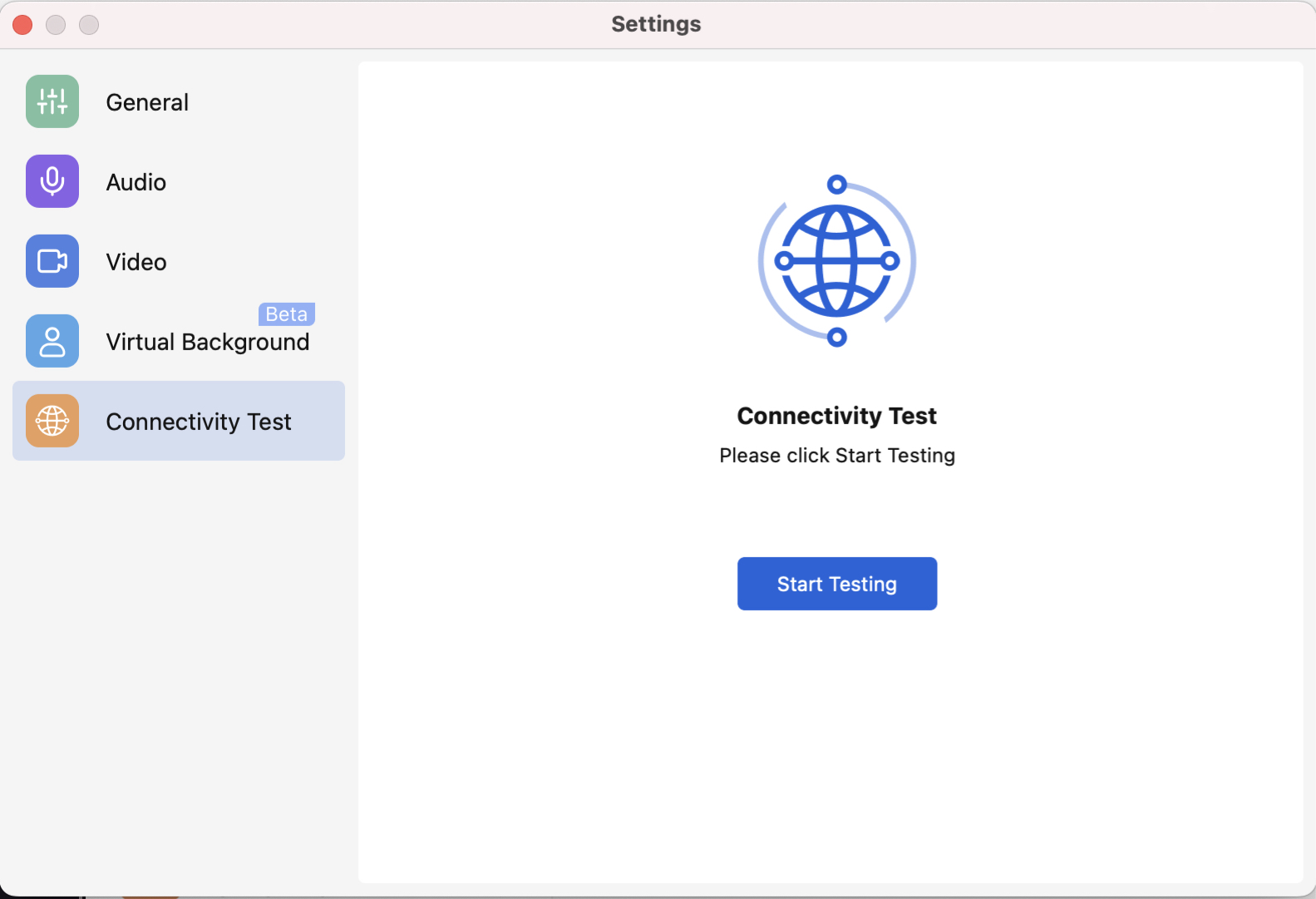
- On Mac/Windows, please go to Settings - Meeting Preference - Connectivity Test check if your network is stabled.
- Device error. If you passed all the above steps, please check if your device is broken.